
Blog · Networks
Zigbee Keeps Dropping? Check Your Wi-Fi Channel
One Zigbee switch kept going offline. The cause was a UniFi access point on an overlapping 2.4 GHz channel. How to recognize Wi-Fi interference and plan channels so it never happens.
The switch that kept going offline
On one of our sites a single Zigbee wall switch kept losing its connection. The rest of the Zigbee devices in the building worked. This one switch went “unavailable” again and again: commands from the app were late or lost, and then it came back as if nothing had happened.
It took us a long time to find the cause. The switch was fine, and so was the Zigbee network. The problem was in the air: a UniFi access point nearby was broadcasting 2.4 GHz Wi-Fi on a channel that overlapped the Zigbee channel, and its traffic simply drowned out the small, low-power Zigbee radio of the switch. Once the Wi-Fi and Zigbee channels were planned so they no longer overlapped, the drops stopped.
Because this is easy to miss and costs hours on site, here is how it happens, how to recognize it and how to prevent it.
Why Wi-Fi drowns Zigbee
- Same band. Zigbee and 2.4 GHz Wi-Fi share 2400–2483.5 MHz. A Wi-Fi channel is 20 MHz wide; a Zigbee channel is about 2 MHz. Each Wi-Fi channel covers four Zigbee channels.
- Very different power. An access point transmits far more power than a battery or wall-switch Zigbee radio. Zigbee devices listen before they talk; when the channel is always busy, their messages wait, collide and get lost.
- The busier the Wi-Fi, the worse it gets. That is why drops often follow the working day: quiet at night, bad when the office or the restaurant is full.
- Automatic channels move. Access points with automatic channel selection or nightly optimization can move onto the Zigbee channel on their own. A network that worked for months can start dropping devices after one night.
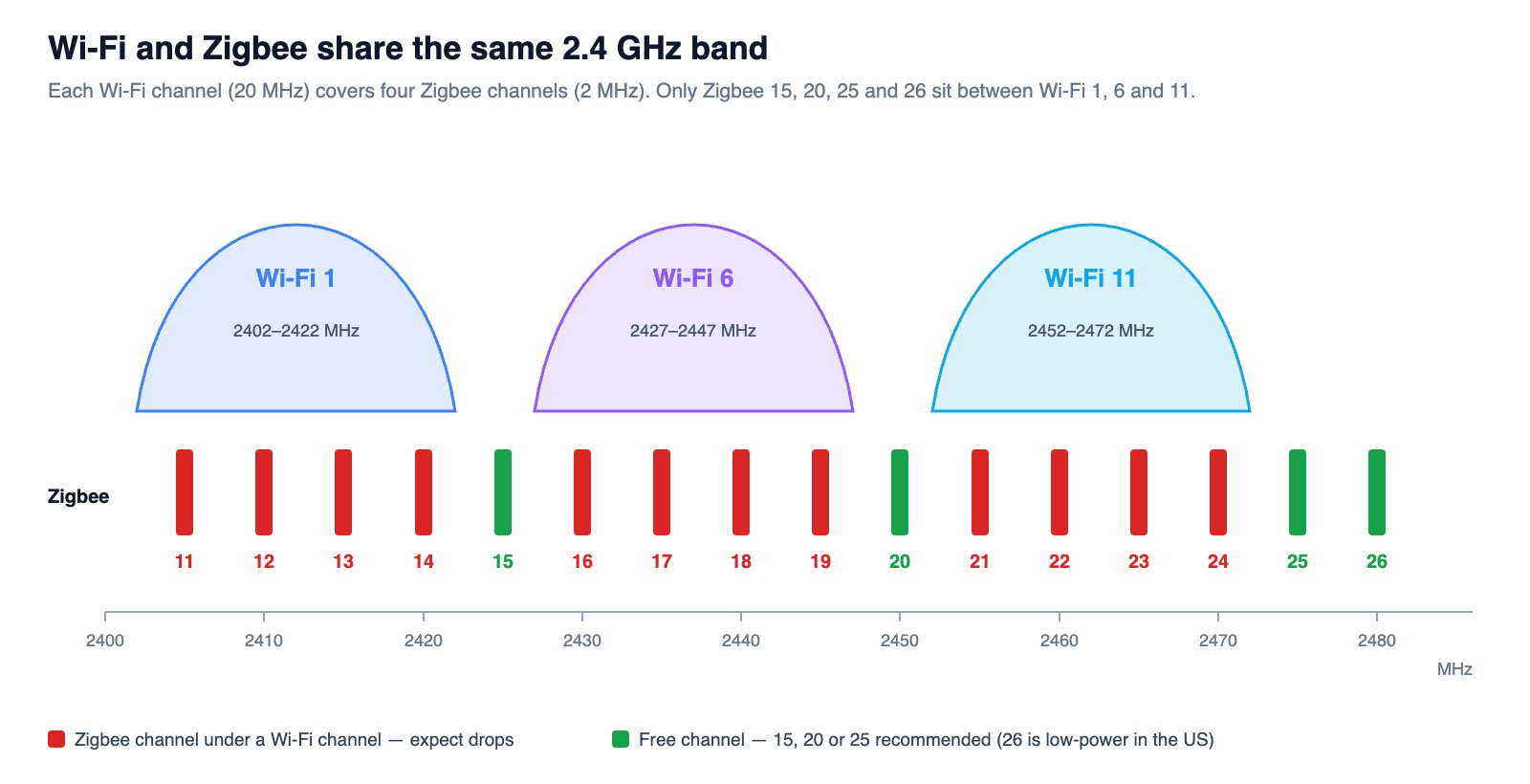
| Wi-Fi channel (20 MHz) | Zigbee channels it covers |
|---|---|
| 1 | 11, 12, 13, 14 |
| 6 | 16, 17, 18, 19 |
| 11 | 21, 22, 23, 24 |
| Free between them | 15, 20, 25 (and 26, which many US devices use at reduced power) |
Note that Zigbee2MQTT starts on channel 11 by default — right under Wi-Fi channel 1. A 40 MHz-wide 2.4 GHz Wi-Fi channel covers about eight Zigbee channels at once.
How to recognize Wi-Fi interference
- One device or one area drops, the rest work. Usually the devices closest to an access point, or the ones with the weakest link to the nearest Zigbee router.
- Drops follow Wi-Fi traffic: worse during working hours, during video calls or backups, better at night.
- Trouble started “by itself” after a Wi-Fi change: a new access point, a firmware update, or an automatic channel change overnight.
- Low link quality. In Zigbee2MQTT or ZHA, the device shows a low LQI / RSSI, and the network map shows weak or changing routes to it.
- Commands are late, not just lost: the switch reacts seconds after the tap, or the state in the app is wrong.
Check it in 15 minutes
- Find the Zigbee channel: Zigbee2MQTT → Settings → Advanced, ZHA → Zigbee settings, or the hub’s network page.
- Find the 2.4 GHz channel of every access point near the problem device. In UniFi Network, open each access point and look at the 2.4 GHz radio; WiFiman or any Wi-Fi scanner shows neighbors’ networks too.
- Compare with the table above. If an access point near the device sits on the Wi-Fi channel that covers your Zigbee channel, you have a strong suspect.
- Test: move that access point’s 2.4 GHz radio to another channel (or briefly turn the 2.4 GHz radio off) and watch the device’s link quality and drops for a day.
- Measure if available: ZHA can run an energy scan of the Zigbee channels; a spectrum analyzer shows the busy parts of the band.
How to prevent it
- Plan channels together. Put Zigbee on 15, 20 or 25, and keep Wi-Fi access points on 1, 6 and 11 so none of them covers the Zigbee channel. Example: Zigbee on 25 and access points on 1 and 6; or Zigbee on 15 and access points on 6 and 11.
- Fix the 2.4 GHz channels by hand. In UniFi Network, set the 2.4 GHz channel of each access point manually and turn off automatic channel changes for 2.4 GHz (nightly channel optimization), so an access point cannot wander onto the Zigbee channel.
- 20 MHz only on 2.4 GHz. Never use 40 MHz channels on 2.4 GHz in a building with Zigbee.
- Lower 2.4 GHz power and move clients to 5/6 GHz. Use low or medium 2.4 GHz transmit power, enable band steering, and keep 2.4 GHz only on the networks that really need it (for example IoT devices).
- Keep the coordinator away from interference. At least 1–2 m from access points and routers, on a USB extension cable away from USB 3.0 ports — or use a network (Ethernet/PoE) coordinator mounted in the middle of the building.
- Build a strong mesh. Mains-powered Zigbee devices (plugs, relays, many wall switches) repeat the signal. Make sure every battery device has a router nearby, and do not place the only router next to an access point.
- Change the Zigbee channel carefully. In ZHA it can be changed from the settings; in Zigbee2MQTT and on many hubs a channel change can mean re-pairing devices. Plan it before the network grows — or for a quiet day.
- Write it down. Keep the Zigbee channel and the 2.4 GHz channel plan in the network documentation, so the next Wi-Fi change does not bring the problem back.
We now check the Zigbee channel against the Wi-Fi plan before installing any Zigbee device, and every time we add or move an access point. If you run UniFi Wi-Fi together with Zigbee lighting, switches or presence sensors, we can check your channel plan remotely or on site.
Frequently asked questions
Can Wi-Fi really knock a Zigbee device offline? +
Yes. Both use the 2.4 GHz band, and a busy Wi-Fi channel that overlaps the Zigbee channel can drown out low-power Zigbee radios. The device usually comes back when Wi-Fi traffic drops, which makes the problem look random.
Which Zigbee channel is best next to Wi-Fi? +
Channels 15, 20 and 25 sit between Wi-Fi channels 1, 6 and 11. Pick the one that does not overlap the Wi-Fi channels used near your devices. Channel 26 is also free, but many devices in the US transmit at reduced power on it.
Should I just turn off 2.4 GHz Wi-Fi? +
Often you can on most networks: laptops and phones work better on 5 or 6 GHz. Keep 2.4 GHz only where devices need it, with fixed channels, 20 MHz width and lower power.
Will changing the Zigbee channel break my devices? +
It depends on the system. ZHA can move the network to a new channel from its settings; with Zigbee2MQTT and some hubs, devices may need to be re-paired. Plan the change and keep a list of devices.
Does UniFi automatic channel selection cause this? +
It can. Automatic channel selection and nightly optimization do not know about your Zigbee channel and may move a 2.4 GHz radio on top of it. Set 2.4 GHz channels manually in buildings with Zigbee.
Devices dropping off your network?
We find the cause — Wi-Fi, Zigbee or cabling — and fix it so it stays fixed.