
Blog · Office IT
Thin Clients in the Office: Pros, Cons and Why the Internet Line Decides
Strong on security and easy to manage — and a source of constant complaints on a slow or unstable connection. What we have learned installing them.
A thin client is a small, quiet box (or an old PC turned into one) that does not run your programs itself. It shows a Windows desktop or web apps that run on a server — in your office, in a data center or in the cloud (Remote Desktop Services, Azure Virtual Desktop, Windows 365, Citrix and similar). The keyboard, mouse and screen are on the desk; everything else is on the server.
We install and support thin clients, remote desktops and locked-down browser workstations. Our short answer: thin clients are excellent for security and management — and painful on a slow or unstable internet line. Here is why, and how to decide.
The pros
Security — the strongest argument
- No data on the desk. Files, email and the line-of-business app stay on the server. A stolen or broken thin client leaks nothing — you plug in a spare and log in.
- One place to patch. Instead of chasing updates on 30 PCs, you update a few servers. No forgotten laptop with a two-year-old browser.
- Ransomware has less to hit. Users have no local admin rights and nothing important on the device; the servers are backed up and can be rolled back from snapshots.
- Control over USB and downloads. USB drives, local saving and copying files out can be blocked or allowed centrally, per user.
- Easy offboarding. Disable one account and the person loses access everywhere — there is no PC with their files to collect.
- Easier compliance. For HIPAA and similar rules, it helps when patient or client data never leaves the server room or the data center.
Management and cost
- New desk in minutes: plug in a thin client, the user logs in to the same desktop as yesterday.
- Software installed once, on the server, for everyone.
- Long life and low power: no fans or moving parts in most models, they last for years and use a few watts instead of tens.
- Small and silent — they mount behind the monitor.
The cons
The internet line decides everything — and a thin line means constant problems
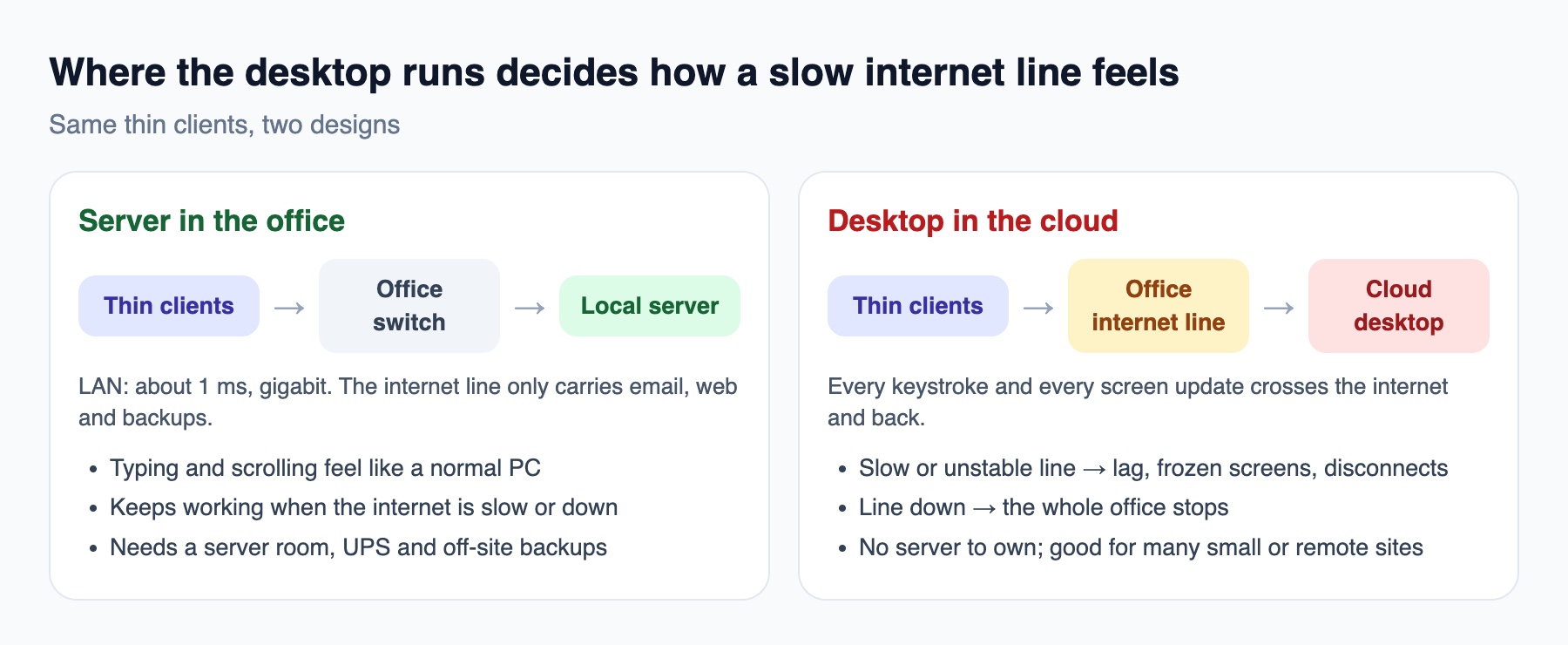
In our experience this is where thin-client projects fail. When the desktops run in the cloud and the office internet line is slow or unstable, the complaints never stop: letters appear a second after you type them, the screen freezes, sessions disconnect, video calls stutter, printing takes forever — and when the line goes down, the whole office stops at once.
- Latency matters more than speed. Microsoft advises keeping the round trip to Azure Virtual Desktop under 150 ms; up to 200 ms is acceptable for text work, above that users feel it (Microsoft Learn). Lost packets on a busy or wireless link hurt even more.
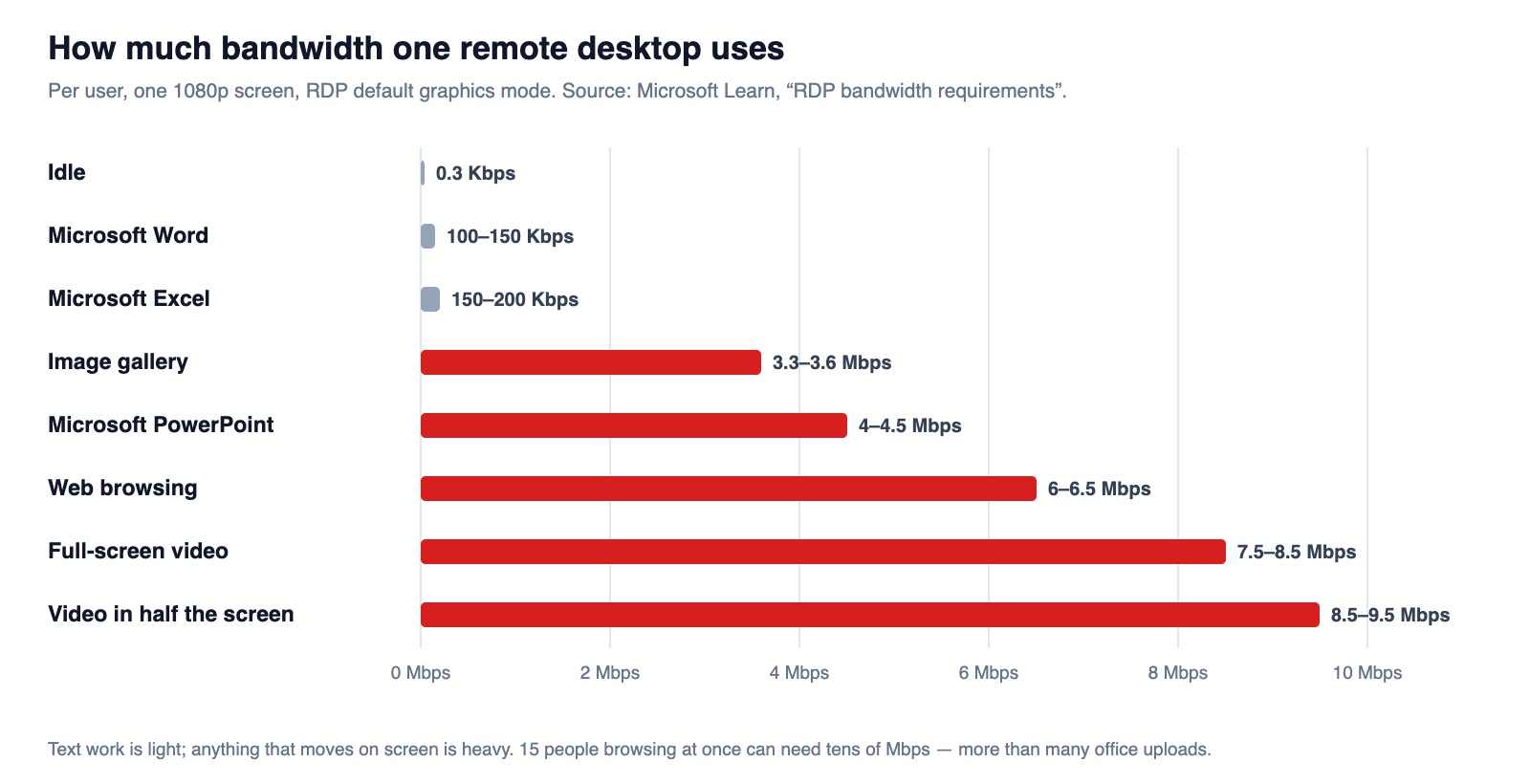
- Anything that moves on screen is heavy. Typing in Word uses a few hundred kilobits per second; browsing a graphics-rich website or watching a video can take several megabits per user (Microsoft’s figures below). Fifteen people doing that at once can fill a typical office upload.
- Everyone shares one line with backups, updates, guest Wi-Fi and video calls — unless the network prioritizes the remote desktop traffic.
Other downsides
- A single point of failure. If the server or its storage fails, nobody can work — so the server needs redundancy, a UPS and tested backups.
- Peripherals. Scanners, signature pads, label printers, card readers and medical or dental imaging sensors connected by USB need redirection to the server, and not all of them behave.
- Video calls. Without media optimization for Teams or Zoom, the video goes through the server and the line twice — choppy for everyone.
- Heavy software. CAD, 3D, photo and video editing or large imaging need GPU servers — often more expensive than good PCs.
- The server side costs money: server hardware or cloud subscriptions, Windows remote desktop licenses and someone who knows how to run it. For a small office, savings on the desks can disappear on the server side.
How to make thin clients work — even on a modest internet line
- Put the server where the users are. A server in the office means the desktops run over the local network; the internet line then only carries email, web and backups. Off-site backups protect against a disaster in the office.
- If the desktops must be in the cloud, choose the closest region and measure the round trip from the office before you buy (aim for under 150 ms, ideally far less).
- Two internet lines. A second provider or a 5G backup with automatic failover keeps people working when the main line drops.
- Prioritize remote desktop traffic (QoS) over backups, updates and guest Wi-Fi, and keep guests on their own network.
- Use the faster transport and codecs: UDP-based connections and H.264/AVC graphics where supported, and media optimization for Teams or Zoom.
- Use a browser workstation when the work is in web apps. If staff work in a cloud EHR, CRM, WMS or booking system, a locked-down browser station does not need a remote desktop at all — only the web app’s own traffic. That is the idea behind our RedCube OS browser workstations.
- Keep a full PC for those who need one. A mix is normal: thin clients at the front desk and on the floor, regular PCs for designers and power users.
When thin clients make sense
| Good fit | Poor fit |
|---|---|
| Front desks, reception, check-in | Designers, engineers, video and photo work |
| Warehouses, shop floors, shared stations | Offices with a slow or unstable internet line and desktops in the cloud |
| Call centers and shift work — many people, same apps | Many special USB devices at each desk |
| Clinics and offices with sensitive data that must stay on the server | Very small offices without anyone to run a server |
| Branches and seasonal staff — quick setup, easy offboarding | People who work offline or travel a lot |
We plan the server, the network and the internet lines together, and support workstations and networks for offices, dental practices and warehouses in Delaware and Pennsylvania.
Frequently asked questions
Are thin clients more secure than regular PCs? +
Usually yes: no data is stored on the device, updates are done on a few servers instead of every PC, users have no local admin rights, and USB and downloads can be controlled centrally. The servers then become the critical part to protect and back up.
How fast does the internet need to be for cloud desktops? +
Latency matters more than speed: Microsoft advises keeping the round trip to Azure Virtual Desktop under 150 ms. Text work needs a few hundred kilobits per second per user; web browsing and video can take several megabits per user in RDP’s default mode, so a busy office needs a solid line and traffic prioritization.
What happens when the internet goes down? +
With desktops in the cloud, everyone stops. With a server in the office, people keep working on local apps and files. A second internet line or 5G backup reduces the risk either way.
Do thin clients save money? +
On the desks, yes — cheaper, longer-lasting and low-power devices. But the server side, licenses and administration cost money too; for small offices the total is often close to regular PCs, and the real gain is security and easier management.
Can we reuse our old PCs as thin clients? +
Often yes. An old PC can run a thin-client or browser-workstation system and get a few more useful years, as long as its hardware is reliable.
Thinking about thin clients?
We check your internet line, apps and peripherals first — and tell you honestly whether thin clients will work for your office.