

Projects
RedCube OS: Secure Browser Workstations You Manage From One Screen
An operating system for PCs that only need a browser: site restrictions, automatic updates, monitoring and remote control of every station from one panel — on as little as 2 GB of RAM.
RedCube OS is a RedCube operating system for workstations that only need a browser: receiving and packing stations, front desks, shared office PCs, check-in kiosks. It installs from a USB stick in about fifteen minutes, starts straight into the browser, lets staff open only the sites you allow, keeps itself up to date — and every station is visible and controllable from one web panel, without walking to the PC.
Product at a Glance
- Boots straight into a full-screen browser with your web app — no desktop, nothing to install, nothing to break
- Site restrictions: only the sites on your list open, or one app in kiosk mode with no address bar
- Automatic updates: operating system and browser security patches every day, with no one at the PC
- Monitoring: every station reports in every 2 minutes — online or offline, version, settings, what is on the screen
- Remote management: settings, restart, power off and on, remote mouse and keyboard — for one station or all of them
- Very low hardware requirements: 2 GB of RAM and 16 GB of storage — older PCs get a second life
- Work with documents: PDFs open right in the browser, Word, Excel and PowerPoint files in Microsoft 365 or Google Docs online — and an office suite can be added to the station for editing documents without the internet
- Work-time tracking (optional): start and end of the day, active and idle time and time in each work app, from how the station is actually used
- Label printers, network printers and the RED Print agent for scales and dimensioners built in
What changes for your IT
- ≈15 min
- from a blank PC to a working station
- 2 GB
- of RAM is enough
- 1 panel
- for every station
- 0
- trips to a PC to update it
What you control
Management, updates, monitoring and site rules in one place
Everything a station does is set from the Control Center — for one PC or all of them at once.
Remote management
Change the start page, mode, language, time zone or Wi-Fi; restart the browser, reboot, power off, power on over the network, or run a command — on one station or the whole floor.
Automatic updates
System and browser security patches install every day by themselves. New versions of the RedCube OS tools roll out from the Control Center to every station, with no reinstall and no USB stick.
Monitoring
Each station reports every 2 minutes: online or offline, address, version and settings. New PCs appear in the list by themselves, and every action is logged with its result.
Site restrictions
Only the sites on your list open; everything else is blocked. Kiosk mode shows one app full screen with no address bar. No browser sign-in, sync, guest profiles or developer tools.
Remote screen and control
See what is on any station's monitor, or take its mouse and keyboard from the web panel. Sessions are encrypted, one at a time, and open only to signed-in administrators.
Low hardware requirements
Any 64-bit Intel or AMD PC with 2 GB of RAM and 16 GB of storage. Older desktops, mini PCs and laptops that cannot run Windows 11 keep working for years.
Security: Staff See Only What Their Job Needs
Most incidents in small and mid-size businesses start at an ordinary workstation: a phishing link, a fake download, a browser that has not been updated, a program someone installed "just to try". RedCube OS closes these paths by design — a station can do the work it is meant for, and nothing else.
Centralized security updates
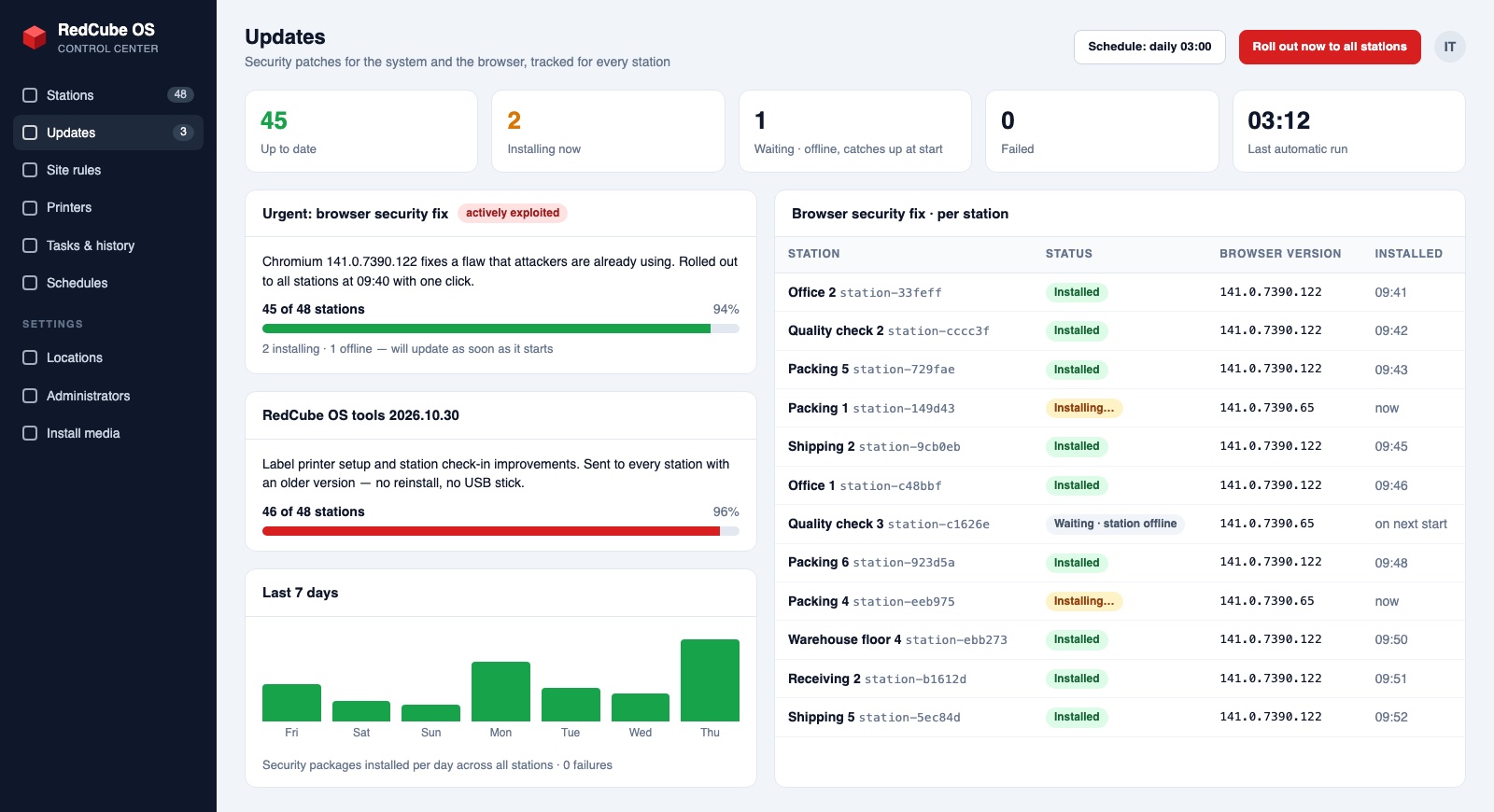
- Operating system and browser security patches install automatically every day on every station, without anyone at the PC and without interrupting the shift
- The Control Center shows each station's version and last check-in, so a station that missed an update is visible at once
- An urgent fix — for example, a browser flaw that attackers are already exploiting — goes out to all stations from one screen in minutes, with the result for every station on record
- Stations that were switched off catch up by themselves as soon as they are back online
Only what the work requires
- Only allowed sites open. Your WMS, CRM, e-mail, carrier portals — everything else, including social media, file-sharing sites and phishing pages, is blocked by the browser itself
- No desktop, no programs, no admin rights. Staff never see a file manager, a terminal or system settings; downloaded Windows programs simply cannot run, and nothing can be installed
- Settings that cannot be changed. Browser rules are enforced as managed policies; sign-in to personal browser accounts, sync, guest profiles and developer tools are switched off
- Nothing valuable on the PC. Business data stays in your cloud apps; with the clean-profile option, every start begins with no saved logins, cookies or history
Protected management
- Remote access to stations works only with an encryption key, for a single service account — there is no password to steal or guess
- The remote screen is reachable only through an encrypted tunnel from the Control Center, one session at a time
- The panel is open only to your IT team, with sign-in plus a one-time code; every action is logged with who, when and the result
Optional: Work-Time Tracking Based on Activity
Because every station runs one controlled browser, RedCube OS can also show how the working day actually goes — without timesheets and without extra software for staff to run.
- Start and end of the day for each station and employee: first and last activity, breaks and idle periods
- Active vs. idle time from keyboard and mouse activity — a station left open with nobody working is not counted as work
- Time in each work app: how long the WMS, CRM, e-mail or a carrier portal was in use, by day and by week
- Reports for managers: hours per employee, per station and per team, exported for payroll or compared with the time clock
Tracking is switched on per station or team, only measures work apps, never records passwords or what is typed, and staff are notified in advance — as some states require, Delaware and New York among them.
How it works
Boot from the USB stick
Choose Install and confirm the disk. Everything else — partitions, users, drivers, browser — is automatic.
Straight into the browser
The PC starts with your web app full screen. Its name and address are shown in the corner for support calls.
Appears in the Control Center
The station is found on the network and added to the list by itself — no addresses to type.
Manage from one screen
Settings, site rules, updates, power and remote help for every station, from the office or from home.
Inside the RedCube OS Control Center
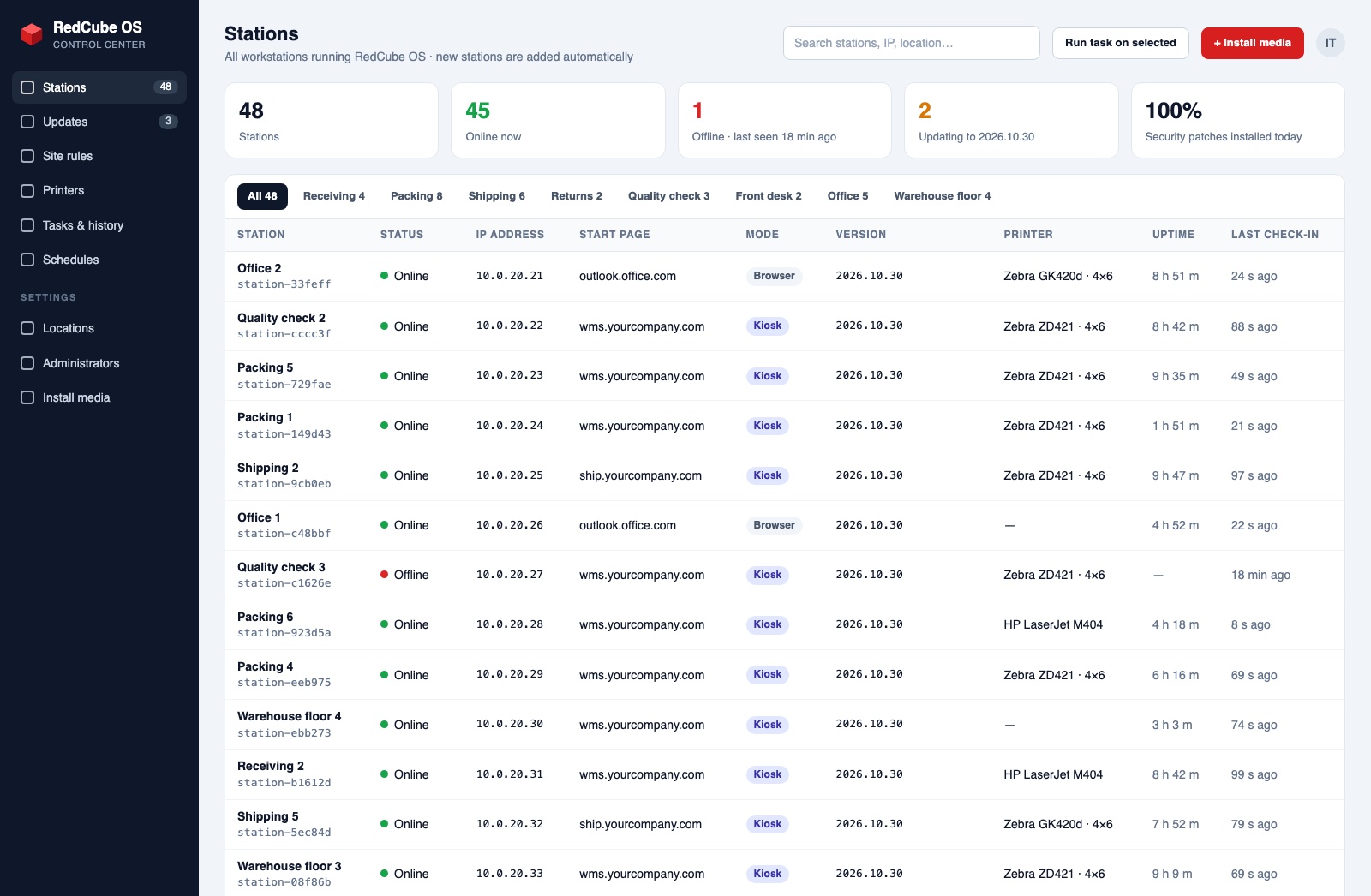
Every station is on one screen: online or offline, its address, start page, mode, version, printer and last check-in. Stations are grouped by location — receiving, packing, front desk, office — and a task can run on one station, a group or all of them.
Managing a single station
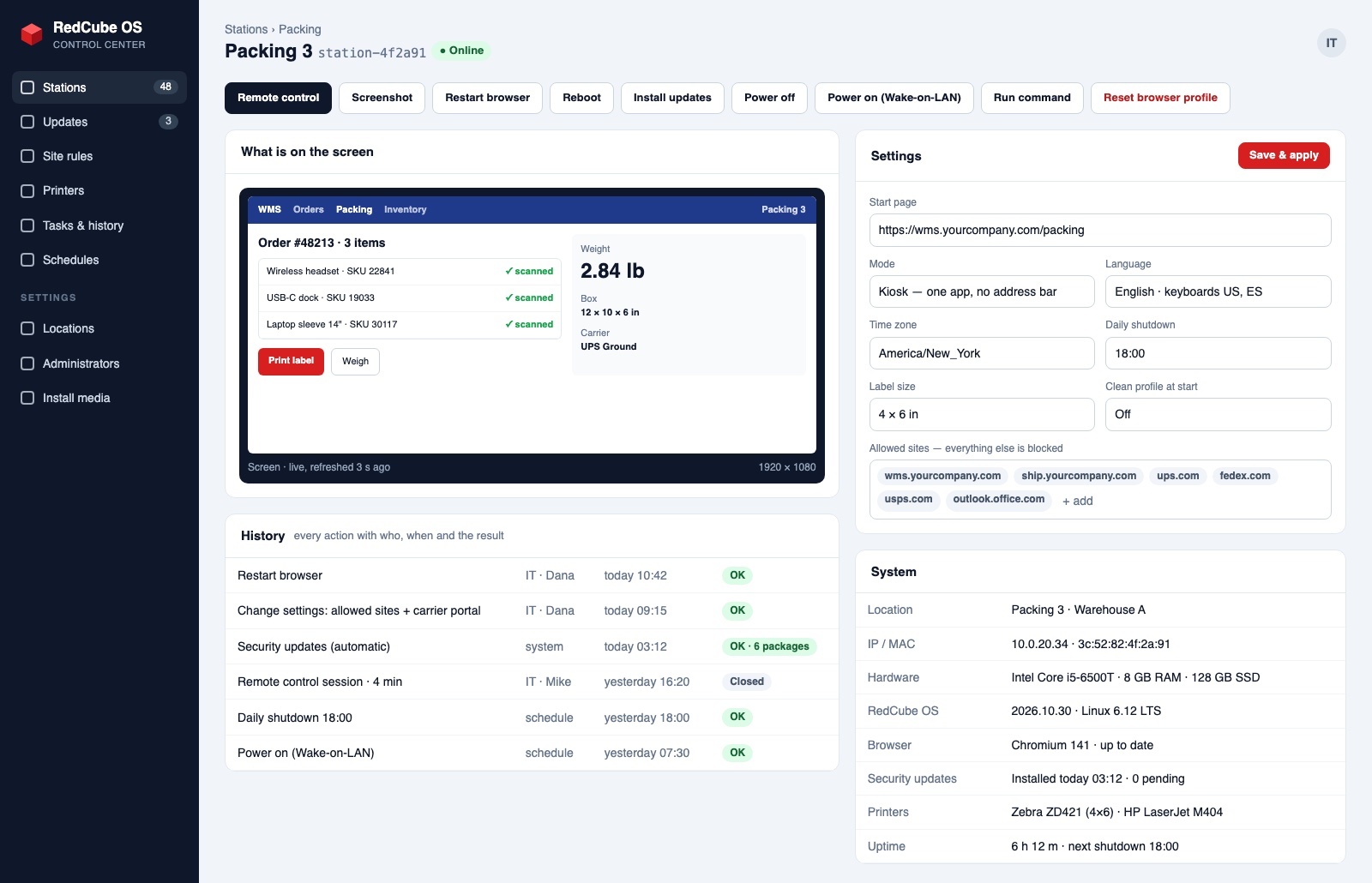
Open a station to see what is on its screen right now, take over the mouse and keyboard, restart the browser, reboot, power it off or on, and change its settings — start page, mode, allowed sites, language, shutdown time, label size. Every action is recorded with who did it, when and the result.
Architecture
The station
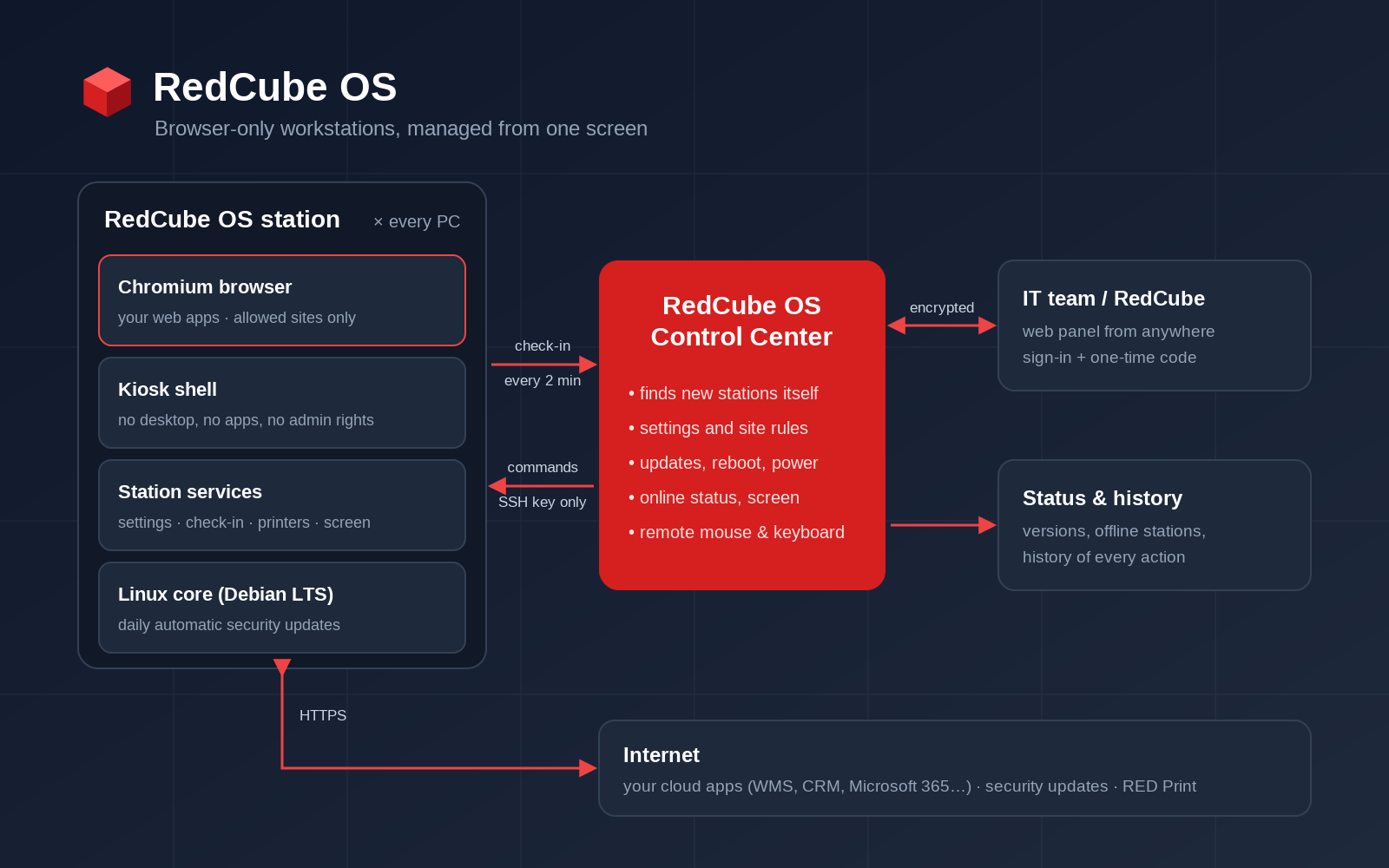
Each PC runs a compact Linux core based on Debian LTS with drivers and firmware for typical office desktops, mini PCs and laptops. At start-up a staff account with no password and no administrator rights signs in by itself, and a kiosk shell opens Chromium full screen. There is no desktop, no file manager and no way to install programs. If the browser is closed or crashes, it opens again.
All settings of a station — start page, mode, allowed sites, language and keyboard layouts, time zone, Wi-Fi, label size, daily shutdown time — live in one file. They are applied at every start and turned into managed browser policies, so staff cannot change them. Small station services report the station's status, set up printers, take a screenshot for support and open a remote screen session on request.
The Control Center
A small virtual machine or container in your office (or hosted by RedCube) keeps the list of stations, finds new ones on the local network by itself and runs management tasks: change settings, update, restart the browser, reboot, power off, power on over the network, run a command. Every task is logged with its result. The web panel shows a card for each station with its status, its screen and its history.
Security by design
- Staff work under an account without rights: nothing they do in the browser can change the system
- Remote access to stations is by encryption key only, for a single service account — no passwords to guess
- The remote screen listens only inside the station and is reached through an encrypted tunnel, one session at a time
- The web panel is open only to your IT team: sign-in plus a one-time code sent by e-mail
- Security updates for the system and the browser install every day by themselves
- Optional clean browser profile at every start, for shared PCs where nothing should be left behind
Minimum Hardware Requirements
RedCube OS needs far less than Windows 11 — most business PCs from the last ten to fifteen years qualify, including machines that cannot be upgraded to Windows 11.
| Minimum | Recommended | |
|---|---|---|
| Processor | Any 64-bit Intel or AMD (x86-64), 2 cores | 4 cores — Intel Core i3 / AMD Ryzen 3 or newer |
| Memory (RAM) | 2 GB | 4 GB; 8 GB for heavy web apps with many tabs |
| Storage | 16 GB — SSD, HDD or eMMC | 32 GB SSD or larger |
| Graphics | Built-in Intel or AMD graphics | Built-in Intel or AMD graphics |
| Start-up | UEFI or legacy BIOS | UEFI with Wake-on-LAN enabled (remote power-on) |
| Network | Ethernet or Wi-Fi (Intel, Realtek, Atheros) | Wired Ethernet |
| Screen | 1366 × 768 | 1920 × 1080 |
| Installation | A USB stick of 4 GB or more; internet access for updates | |
Control Center: a small virtual machine or container on any server in the office — 1–2 CPU cores, 1–2 GB of RAM and 10 GB of disk are enough for dozens of stations. RedCube can also host it for you.
Hardware Cost: RedCube OS vs. Windows 11
Windows 11 officially needs an 8th-generation Intel Core or AMD Ryzen 2000 processor or newer, a TPM 2.0 security chip, Secure Boot, 4 GB of RAM and 64 GB of storage — and in practice 16 GB of RAM to run smoothly. Many office PCs bought before 2018 do not qualify at all. RedCube OS runs on any 64-bit PC with 2 GB of RAM and does not need a TPM chip.
| Per station | Windows 11 | RedCube OS |
|---|---|---|
| Existing PC from 2015–2017 (6th–7th gen Intel) | Not supported — must be replaced | Keeps working: $0 (≈ $50 for an SSD if it still has a hard drive) |
| New business desktop (Core i5, 16 GB RAM, 512 GB SSD, Windows 11 Pro) | ≈ $800–1,100 | Not needed |
| Cheapest option that still works well | Refurbished 8th-gen PC with Windows 11 Pro ≈ $250–380 (8 GB of RAM is tight for Windows 11) | Refurbished business mini PC (Core i5, 8 GB, SSD) ≈ $150–250 |
| Windows license | Included in the PC price, or ≈ $200 for Windows 11 Pro | Not needed |
Example: 20 stations
| Windows 11 | RedCube OS | |
|---|---|---|
| The office has 20 PCs from 2016 | 20 new PCs ≈ $16,000–22,000 | Same PCs, SSDs where needed ≈ $0–1,000 |
| 20 new stations are needed | New business PCs ≈ $16,000–22,000 | Refurbished mini PCs ≈ $3,000–5,000 |
Approximate US prices as of October 2026. The memory chip shortage has pushed prices of new PCs up by roughly 15–20% this year, so reusing hardware matters more than usual. We are happy to check your PCs and prepare an exact quote.
Case 1: Setting Up a New or Replacement Station
A packing station PC fails in the middle of a shift, or the warehouse adds three more receiving stations. Each one needs to be ready with the right web app, the printers and the same restrictions as the others.
With a regular Windows PC
- Install Windows, drivers and all pending updates, with several reboots.
- Install and set up the browser, the start page, bookmarks and the printers.
- Lock the PC down: a limited user, blocked sites, no software installs, no settings changes.
- Install antivirus and remote-support tools, then write down the PC's name and address.
With RedCube OS
- Boot the PC from the RedCube OS USB stick, choose Install and confirm the disk.
- In about fifteen minutes the station starts straight into the browser and appears in the Control Center by itself.
- Its settings — start page, allowed sites, printers, shutdown time — are sent from the panel in one click, or copied from the other stations.
| Per station | Windows | RedCube OS |
|---|---|---|
| Install system and updates | ≈ 1.5–2 hours | ≈ 15 minutes (about 5 minutes of a technician's time) |
| Browser, printers, start page | ≈ 30 minutes | |
| Lock-down and support tools | ≈ 30–60 minutes | |
| Total | ≈ 2.5–3.5 hours | ≈ 15 minutes |
Case 2: Keeping 20 Stations Updated, Safe and Working
Twenty shared PCs on the warehouse floor and at the front desk. They must stay patched, run only the business apps, and get help quickly when something goes wrong.
With regular Windows PCs
- Monthly updates interrupt shifts with restarts; failed updates are found only when someone complains.
- Staff open other sites, install extensions and change settings; the PC slows down or picks up malware.
- "My screen is stuck" means a walk to the station or talking the user through it on the phone.
With RedCube OS
- Security updates install every day by themselves; the panel shows each station's version and status.
- Only the allowed sites open, and there is nothing to install or change — every station stays the same.
- For a support call, open the station's card, look at its screen and restart the browser or take the mouse and keyboard — about a minute.
| Per month, 20 stations | Windows | RedCube OS |
|---|---|---|
| Updates, reboots, failed patches | ≈ 6–8 hours | ≈ 15 minutes (checking the panel) |
| Clean-up after unwanted software and settings | ≈ 3–5 hours | none — nothing can be installed |
| Typical support call | ≈ 15–30 minutes, often on site | ≈ 1–2 minutes, remote |
Roughly 10 or more IT hours a month saved on 20 stations — and the stations that matter most to daily operations stop being the ones most likely to break.
Times above are typical estimates for illustration; actual numbers depend on your PCs, apps and staff. We are happy to compare your current process with a pilot of a few RedCube OS stations.
Why RedCube OS
More advantages
- Older PCs get a second life — 20 stations can cost $0–1,000 instead of $16,000+ for new Windows 11 PCs
- No Windows license or antivirus subscription needed for the station
- Staff cannot install software or change settings — nothing to break
- Optional clean browser profile at every start for shared PCs
- Daily automatic shutdown and remote power-on save electricity
- Station name and address on screen; a power button for staff
- Documents: built-in PDF viewer, online office apps, and an optional office suite for Word, Excel and PowerPoint files
- Zebra label printers set up by themselves, with the right label size
- RED Print built in for scales, dimensioners and cameras
- English, Spanish and Russian interface; keyboard layouts switch with Alt+Shift
- Works over cable or Wi-Fi; starts in well under a minute
- Try it first: run RedCube OS from the USB stick without installing
- A broken station is replaced in 15 minutes — nothing important is stored on it
Questions about RedCube OS
How secure is RedCube OS compared with a regular Windows PC? +
Which applications work on RedCube OS? +
Can staff work with documents? +
Can we use the PCs we already have? +
How are updates handled? +
How do you restrict which sites can be opened? +
What happens if a station breaks? +
Do we need a server? +
Can staff save their passwords in the browser? +
Can RedCube OS track working time? +
Who supports it? +
Related Projects
- RED Print: warehouse scales, dimensioners and cameras connected to your cloud WMS
- Warehouse: Ubiquiti network and workstation cameras
- Fault-tolerant warehouse network
- RedCube CRM: from the first e-mail to the paid invoice
Services Used in This Project
Workstation management · Managed IT services · Warehouse & manufacturing IT · On-site and remote support