
Blog · Guest Wi-Fi
Guest Wi-Fi That Brings Customers Back: UniFi Captive Portal Marketing for Restaurants and Local Businesses
Turn the free Wi-Fi you already offer into coupons, opt-in e-mails, Google reviews and real numbers — with your UniFi Cloud Gateway, and without spying on guests.
Almost every restaurant, coffee shop, salon and store already gives away free Wi-Fi. Usually it is a password on a chalkboard, and the business gets nothing back: no idea how many guests use it, no way to invite them back, no link to the menu or the website.
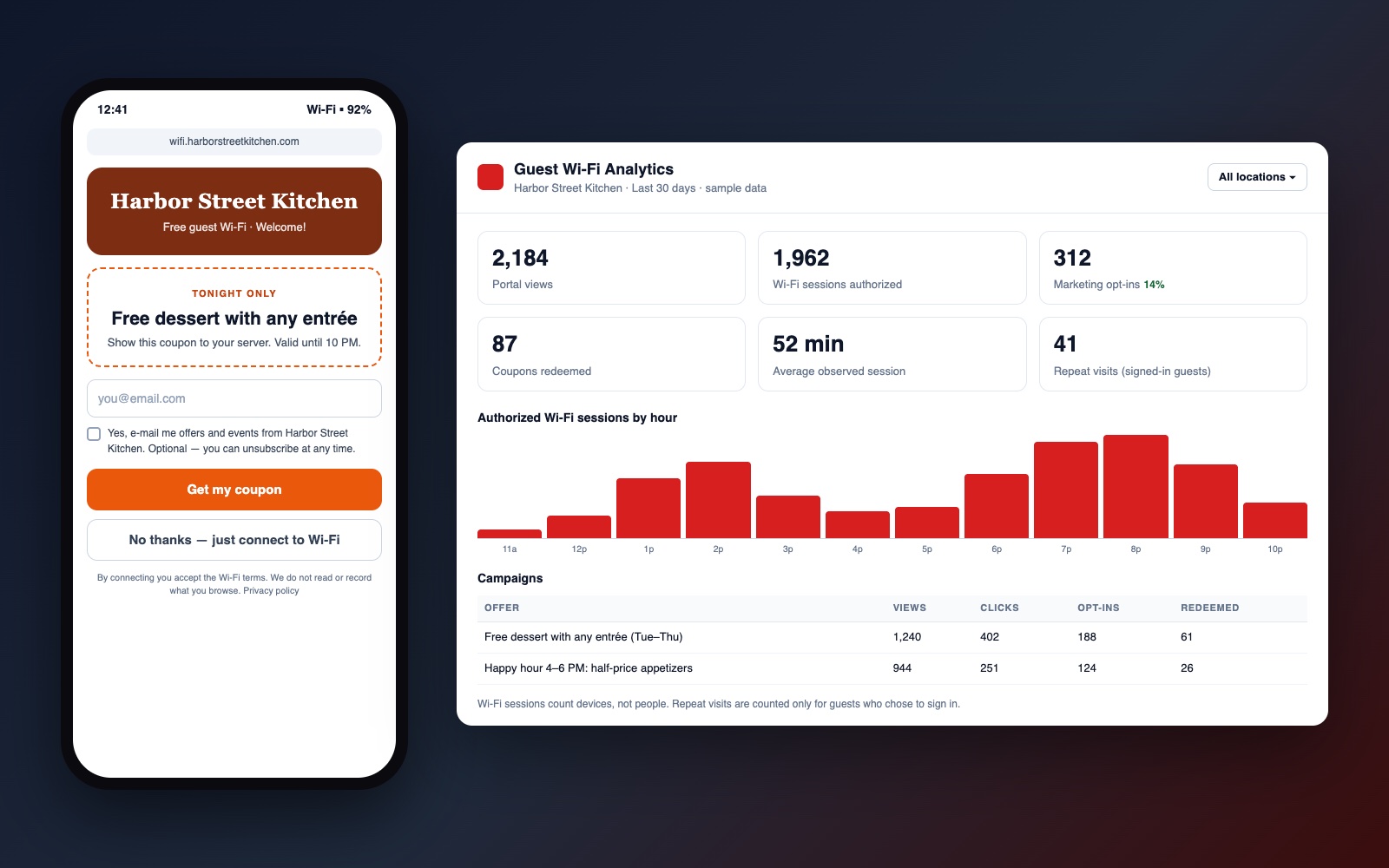
If your network runs on a UniFi Cloud Gateway (Ubiquiti), the same Wi-Fi can do much more. Guests open a page with your logo and today’s offer, can take a coupon, may choose to join your e-mail list, and then go online. You see how many people saw the offer, how many coupons came back to the register and when your guests are actually in the building.
This article explains how it works, what it can and cannot measure, and how it plays out in a restaurant, a café, a salon, a store, a dental office and an auto shop. You will also find a step-by-step guide to connecting your own portal to UniFi, and what RedCube needs from you to set it up.
What you need
- A UniFi Cloud Gateway (for example a UCG-Ultra, UCG-Max, UDM Pro or UDR) with UniFi access points.
- UniFi Network 9.1 or newer. From this version Ubiquiti publishes an official Network API with API keys, created in Network → Control Plane → Integrations. We confirm what your exact version supports before we build anything.
- A separate guest network with Hotspot / Captive Portal turned on and an external portal address. If you do not have one yet, we set it up.
How it works
Ubiquiti documents this flow in its External Hotspot API article. In plain words:
- A guest joins your Guest Wi-Fi. UniFi treats the phone as a guest that is not authorized yet.
- When the phone tries to open any page, UniFi sends it to your portal page, hosted by RedCube on your own domain (for example wifi.yourrestaurant.com).
- The guest sees your brand and today’s offer. They can take the coupon with an e-mail address, tick a separate, unticked box to get your newsletters, or simply tap “just connect”. Wi-Fi works either way.
- A small connector inside your network asks the UniFi Network API to let this guest online, with the time and speed limits you chose (for example 2 hours at a fair speed).
- Every step is recorded as an event: portal opened, offer clicked, Wi-Fi authorized, e-mail opt-in, coupon redeemed. You see them on a dashboard per location and per campaign.
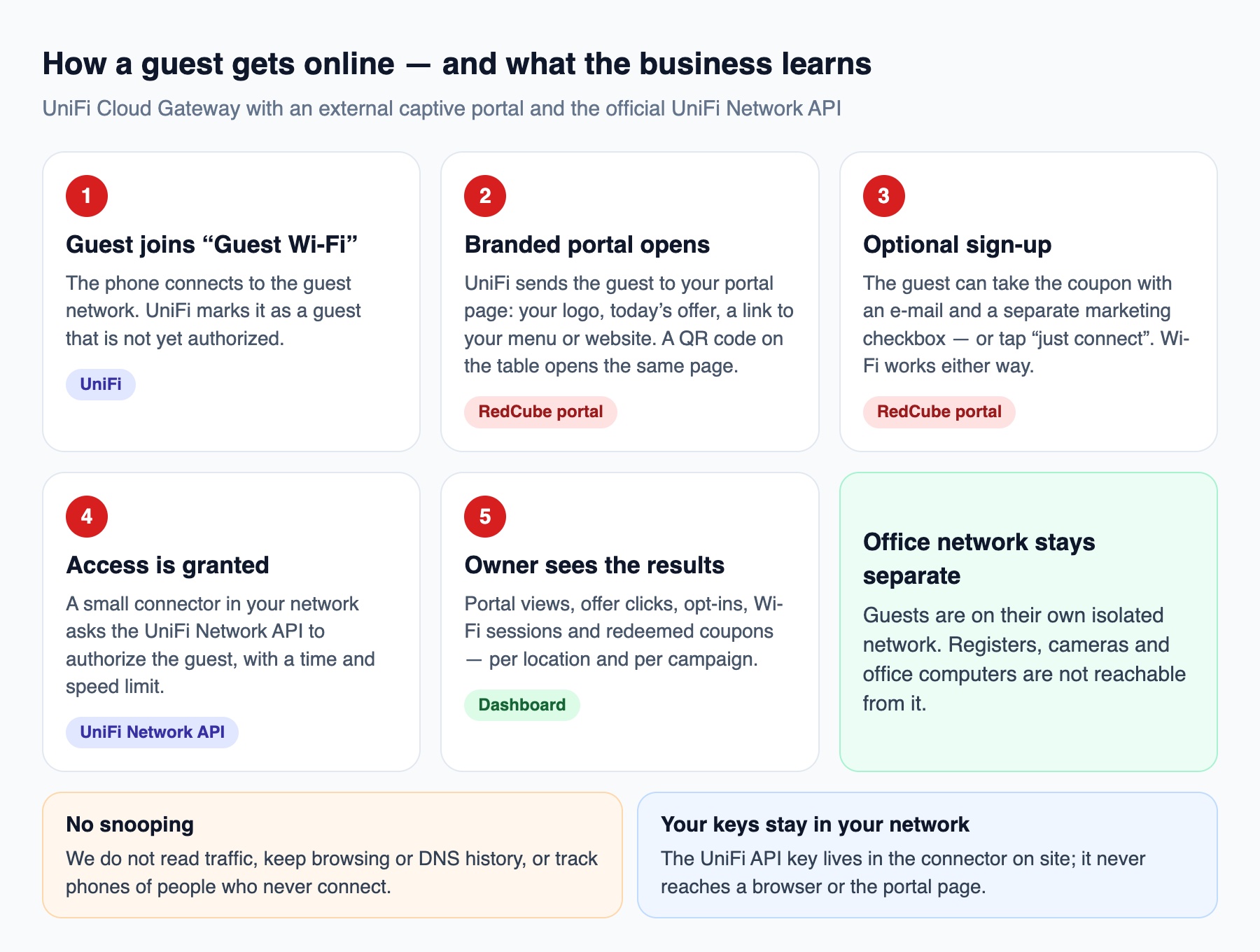
The connector keeps your UniFi API key inside your building: it only makes outgoing encrypted connections, so you do not open ports on your firewall, and the key never reaches a browser.
Step by step: connect your own portal to UniFi
This is the setup from Ubiquiti’s External Hotspot API for Authorization Clients article, written out for a business owner or an IT person. Menu names can differ slightly between UniFi Network versions; the API examples are a sketch to check against the API documentation in your own console.
1. Update UniFi Network and create an API key
- Update the UniFi Network application on your Cloud Gateway to 9.1.105 or newer. This is the version where Ubiquiti published the official API and API keys.
- Open Network → Control Plane → Integrations and create an API key, for example “Guest portal”. The same page has the full API documentation for your version — keep it open.
- Store the key only on the portal server or the connector in your network, never in the portal page or in the browser.
2. Create the guest network and turn on the captive portal
- Create a separate network for guests (its own VLAN) and a Wi-Fi name such as “Harbor Street Guest”.
- Turn on Hotspot → Captive Portal for this Wi-Fi. New phones then join as
GUESTwithauthorized: falseand cannot reach the internet yet. - In the portal settings, under authentication, choose External Portal Server and enter the address of your portal server.
- In Pre-Authorization Access (the “walled garden”), allow the portal’s domain and IP address, plus anything the portal loads before login: fonts, images, a payment page or a sign-in provider.
- Check the firewall: the Hotspot zone is applied to the guest network and guests cannot reach your office network, registers or cameras.
3. Read who is connecting
When a guest opens any page, UniFi sends the phone to your portal with the details in the address:
http://YOUR-PORTAL/guest/s/default/?ap=94:2a:6f:d0:30:57&id=1c:71:25:63:e4:24&t=1742398732&url=http://netcts.cdn-apple.com%2F&ssid=dph-guestid— the MAC address of the guest’s phone (the one you will authorize);ap— the access point the guest is connected to (useful when you have several rooms or locations);ssid— the Wi-Fi name;url— the page the guest originally wanted.
The portal now shows your offer, the coupon and the optional e-mail sign-up, and always a “just connect” button.
4. Find the site and the client through the API
The base address and how the API key is sent are listed in the API documentation in your console. On a Cloud Gateway it usually looks like the example below, with the key in the X-API-KEY header.
# the site ID (a Cloud Gateway returns one site)
curl -k -H "X-API-KEY: $UNIFI_API_KEY" \
  "https://192.168.1.1/proxy/network/integration/v1/sites"

# the guest's client record, by the MAC address from the "id" parameter
curl -k -H "X-API-KEY: $UNIFI_API_KEY" \
  "https://192.168.1.1/proxy/network/integration/v1/sites/SITE_ID/clients?filter=macAddress.eq('1c:71:25:63:e4:24')"
The answer contains the client’s id and its access state, for example "access": {"type": "GUEST", "authorized": false}.
5. Let the guest online
When the guest taps “Get my coupon” or “just connect”, the server sends one request. Time, data and speed limits are optional:
curl -k -X POST -H "X-API-KEY: $UNIFI_API_KEY" -H "Content-Type: application/json" \
  "https://192.168.1.1/proxy/network/integration/v1/sites/SITE_ID/clients/CLIENT_ID/actions" \
  -d '{
    "action": "AUTHORIZE_GUEST_ACCESS",
    "timeLimitMinutes": 120,
    "dataUsageLimitMBytes": 500,
    "rxRateLimitKbps": 10000,
    "txRateLimitKbps": 10000
  }'
Then send the guest on: to the page they wanted (url), or better, to your menu, booking page or a “thank you” page with the coupon.
6. Confirm and record
Ask the API for the same client again. When everything worked, it shows "authorized": true with authorizedAt and expiresAt. That is the moment to record the “Wi-Fi authorized” event for the dashboard. If the gateway does not answer, the portal shows a friendly “try again” message and records nothing — it never invents a session.
7. Wired guests (optional)
Guest ports in a lobby or a meeting room can use the same portal: create a wired guest network (for example GuestLAN), put it in the Hotspot zone of the zone-based firewall and assign it to those switch ports.
Test before you launch
- An iPhone and an Android phone, each joining for the first time and again the next day.
- The session runs out: the portal opens again.
- The portal does not pop up by itself: the QR code on the table opens the same page.
- Internet down or gateway restarting: guests see a clear message, the dashboard shows no fake sessions.
- A guest unsubscribes: no more e-mails, and the record of consent is kept.
Not sure about any of these steps? We set it up for you — on your UniFi equipment, with your branding.
Examples: how different businesses use it
These are typical setups we recommend. Names and numbers are examples, not client results.
1. A neighborhood restaurant
The goal: fill slow weeknights and bring first-time guests back.
- Portal: the restaurant’s logo, a link to the menu and a “free dessert with any entrée, Tuesday to Thursday” coupon.
- Coupon: a short code the server enters in the POS, so redemptions are counted at the register, not guessed.
- After the meal: guests who opted in get one thank-you e-mail with a link to the restaurant’s Google review page, and a monthly e-mail about specials and events.
- The owner sees: portal views and coupons redeemed per weekday, guest Wi-Fi sessions by hour (busy and quiet hours) and how each offer compares.
2. A coffee shop where people stay and work
The goal: fair Wi-Fi for everyone, and more orders from laptop guests.
- Session limit: 2 hours per connection. When it ends, the portal offers another 2 hours together with “any pastry for $1 with a refill”.
- Speed limit per guest, so one large download does not slow everyone down.
- The owner sees: how long sessions really last, when the shop is busiest and how often the refill offer is used.
3. A hair or nail salon
The goal: rebookings and referrals.
- Portal: “Book your next visit” with a link to the online booking page and a “refer a friend, both get 15% off” code.
- Opt-in e-mail reminders about seasonal services, only for clients who asked for them.
- The owner sees: how many clients opened the booking link from the salon chair, and which referral codes came back.
4. A retail store or boutique
The goal: turn browsers into buyers and into online customers.
- Portal: “10% off today’s purchase” plus a link to the online store, with campaign tags so website visits from the Wi-Fi show up in your website analytics.
- Several locations: one dashboard, comparison by store and by campaign.
- The owner sees: portal views, coupon use at the register and visits to the online store that came from the in-store Wi-Fi.
5. A dental or medical office waiting room
The goal: a better wait and more reviews, with no patient data on the portal.
- Portal: the practice logo, “we’ll call you shortly”, links to new-patient forms, the patient portal and a page about cosmetic services.
- No health information is asked for or stored by the Wi-Fi portal; marketing e-mail is a separate, optional choice.
- The guest network is fully separate from the systems with patient records, which is part of good HIPAA practice.
- The owner sees: waiting-room Wi-Fi use by hour and how often patients opened the forms or the review link.
6. An auto repair shop or service office
The goal: customers who wait come back for the next service.
- Portal: “Free tire rotation with your next oil change” and a link to schedule the next visit.
- Opt-in service reminders by e-mail.
- The owner sees: how many waiting customers took the offer and how many came back with the code.
Guest Wi-Fi that helps your website and Google listing
Wi-Fi itself does not change where you rank on Google. What it does is put your website and your Google Business Profile in front of every guest at the moment they are happiest with you — sitting at your table or in your chair. That turns into the signals that do matter for local search:
- More Google reviews. The portal and the thank-you e-mail link straight to your review page. Reviews are one of the things Google uses to rank local businesses. One rule: do not trade Wi-Fi or coupons for reviews — Google does not allow incentivized reviews. Ask, do not pay.
- Real visits to your website. The menu, the booking page or the online store open from the portal, tagged so you can see them in your website analytics.
- Your own e-mail list. Opt-in addresses belong to you, not to a delivery app or a social network. Each e-mail with news brings people back to your site.
- QR codes on tables and the counter. Phones do not always open the portal on their own, so a QR code with the offer’s web address works as a second door — and as a printed link to your website.
To make sure your offers reach the inbox and not the spam folder, your domain needs correct SPF, DKIM and DMARC records. You can check them in a minute with our free domain security check.
What the numbers mean — and what they do not
We report only what the network and the portal actually see. When something is unknown, the dashboard says “unknown” instead of guessing.
- Wi-Fi sessions are devices, not people. One guest with a phone and a laptop is two devices; a guest who never connects is not counted at all. We never present Wi-Fi numbers as foot traffic.
- Repeat visits are counted only for guests who chose to sign in. Modern iPhones and Android phones use a private (random) Wi-Fi address, so the same phone can look new on another day.
- Coupons are counted when they are redeemed at the register, which is the most reliable number of all.
Privacy and the rules
- A clear notice on the portal about what is collected and why, with a link to your privacy policy.
- Wi-Fi works without signing up for marketing. The marketing checkbox is separate and never pre-ticked; we store when and how consent was given.
- Marketing e-mails follow CAN-SPAM: who you are, your address and a working unsubscribe link. Text messages need separate written consent and are not part of the basic setup.
- No reading of traffic, no browsing or DNS history, no tracking of phones of people who never connect.
- Data is kept for a set period, can be exported or deleted on request, and every access is logged. Venues for children and healthcare providers get extra review.
How RedCube sets it up
We design, install and support business networks built on Ubiquiti UniFi, including multi-site setups like our warehouse network case study. For guest Wi-Fi marketing the steps are:
- Check your equipment. Gateway model, UniFi OS and UniFi Network versions, and which API features your version really supports.
- Separate the guest network. Its own network and Wi-Fi name, isolated from your registers, cameras and office computers, with speed limits.
- Design the portal. Your logo, colors, offer, terms and privacy notice; a light page that also opens in the small browser phones use for Wi-Fi sign-in.
- Install the connector and connect it to your gateway with an API key that stays in your network.
- Test on real phones. iPhone and Android, first and repeat visit, expired session, internet outage, gateway restart, unsubscribe.
- Launch and report. You change offers yourself; we watch the network and send a short monthly summary.
What we need from you
- Admin access to your UniFi console (or we visit on site) and your gateway model.
- Your logo, the first offer and how your staff will redeem coupons.
- Where e-mail opt-ins should go: our dashboard export, your CRM or your e-mail platform.
- Your privacy policy link, or we help you update it.
We work with restaurants and retail stores, dental practices and other local businesses in Delaware and Pennsylvania.
Frequently asked questions
Does this work with my UniFi equipment? +
It works with UniFi Cloud Gateways (UCG-Ultra, UCG-Max, UDM Pro, UDR and similar) on UniFi Network 9.1 or newer, where Ubiquiti provides the official Network API. We check your exact model and version first and tell you if an update is needed.
Do guests have to give their e-mail to get online? +
No. Wi-Fi works with one tap. The e-mail is only for the coupon, and joining your mailing list is a separate, optional checkbox.
Can it count how many customers visit? +
It counts portal views, Wi-Fi sessions (devices) and redeemed coupons. It does not count people who never connect, and phones with private Wi-Fi addresses can look new on each visit, so we never present Wi-Fi numbers as total foot traffic.
Will guests slow down my registers or office computers? +
No. Guests are on a separate, isolated network with per-device speed limits, so they cannot reach your POS, cameras or office computers.
Can I give a coupon for a Google review? +
No — Google does not allow rewards for reviews. You can link to your review page from the portal and the thank-you e-mail and simply ask.
Does guest Wi-Fi help my website rank on Google? +
Not directly. It helps indirectly: more reviews on your Google Business Profile, more visits to your website and menu, and an e-mail list that keeps bringing guests back.
Who owns the e-mail list? +
You do. Opt-ins can be exported at any time or sent to your CRM or e-mail platform, together with the record of consent.
Want your guest Wi-Fi to work for your business?
We check your UniFi setup and show you what a branded portal and dashboard would look like for your location.